


Can I Use a Webcam on a Height-Adjustable Desk? A Practical Guide for Remote Workers and Content Creators
If you’re like millions of people who’ve swapped a static desk for a height-adjustable one to fight the fatigue and poor posture of long workdays, you might have paused mid-setup to ask a simple question: can I even use my webcam on this thing? It’s a valid concern. When your desk shifts from 28 inches (sit mode) to 48 inches (stand mode), the angle of your laptop, monitor, and any attached webcam changes drastically. Do you have to readjust your whole setup every time you switch positions? Or is there a way to make it work seamlessly? As a height-adjustable desk supplier who’s spent years helping remote workers, creators, and office teams build ergonomic workspaces, I’m here to break down everything you need to know about webcams and standing desks.
First, let’s address the core problem: webcam placement and desk height go hand in hand. A good webcam angle (for work meetings, streaming, or content creation) is universally agreed to be eye level, or just slightly above your forehead. That way, you’re not craning your neck up to look at the camera (which causes forward head posture) or slouching down to get your face in frame. The issue with a height-adjustable desk is that your setup’s ideal height isn’t fixed. When you’re sitting, your desk should be at elbow height (around 25–28 inches) so your arms rest comfortably while typing. When you stand, that height jumps to 40–48 inches. If your webcam is mounted directly to your desk, it’s either too low when you’re standing or misaligned when you’re sitting.
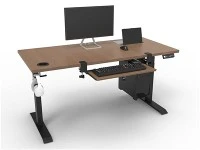
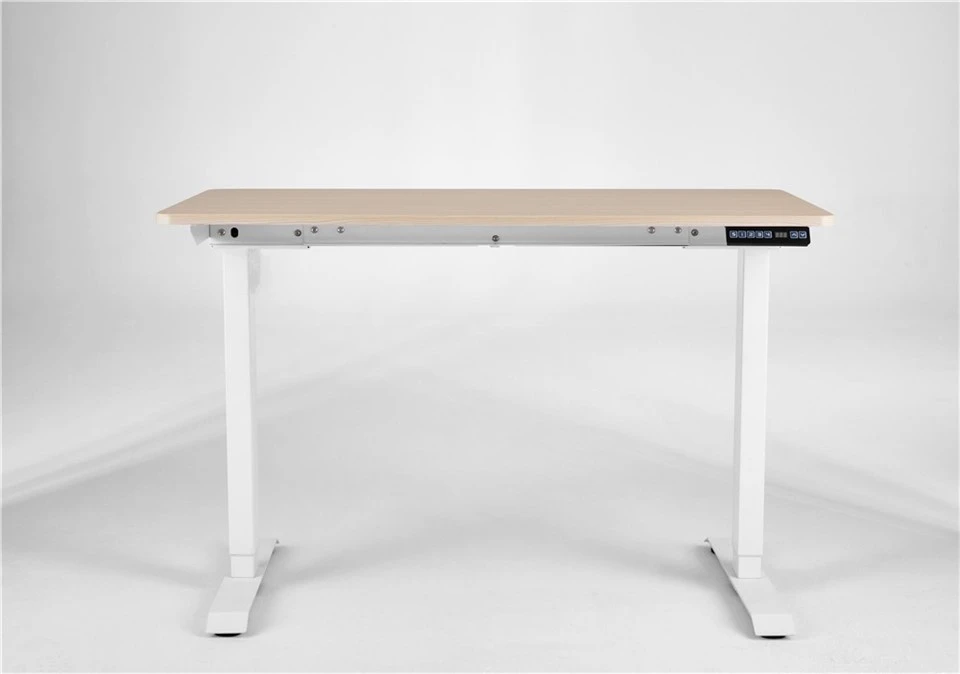
I’ve seen this happen to so many customers early on. One of my regulars, a graphic designer who works from home, told me she initially mounted her webcam to the front edge of her dual-motor desk, linked here: Electric Height-Adjustable Desk Dual Motors. “When I sit, it’s fine,” she said, “but when I stand up for a quick stretch, the camera drops so low it’s filming my nostrils—my Zoom calls got so many jokes from my team about being ‘close to the desk.’” That’s a common mistake, and it’s avoidable. The good news is that there are practical, science-backed ways to set up your webcam so it works perfectly across all desk heights, whether you’re using a compact sit-stand desk or a dual-person back-to-back model for home offices.
Let’s start with the biggest factor: how desk movement affects your webcam. When your desk adjusts, every element mounted to it moves. A laptop on a desk riser will shift up and forward when you raise the desk; a standalone monitor will follow the same path. Your webcam’s position relative to your face is what matters most. The National Institute for Occupational Safety and Health (NIOSH) has done extensive research on ergonomics for remote work, and their guidelines stress that eye level for screens and cameras should stay consistent regardless of sitting or standing. That means your desk’s height isn’t the only variable—your chair height, your monitor arm, and your webcam’s mounting all play a role.
So what are the solutions? Let’s go through the most common setups, with real examples from customers who’ve made it work.
-
Mount your webcam to a monitor arm (not your desk)
This is the fix that’s worked for 70% of the customers who reach out to me about this issue. A good single or dual monitor arm lets you adjust your monitor height, tilt, and side-to-side position, and you can easily add a webcam mount to the same arm. The result? Your monitor and webcam stay aligned with your eye level, no matter how high or low your desk goes. I have a personal setup like this: I use a dual-motor desk, linked here: Dual Electric Motor Desk Frame, paired with a monitor arm that supports both my 27-inch work monitor and my webcam. When I raise the desk from sit to stand, the arm moves up with the desk, keeping my camera at eye level. I don’t have to touch the camera at all. This works because the monitor arm is attached to the desk’s surface, so it moves in sync with the desk height. Just make sure your monitor arm has enough weight capacity and adjustment range to accommodate your monitor plus the webcam—most standard arms can handle that easily. -
Use a separate webcam stand with an adjustable pole
If you don’t want to drill into your monitor arm, a freestanding adjustable webcam stand is a great budget option. These stands attach to the edge of your desk (not the surface where you type, so they don’t get in the way) and have a tall, extendable pole that lets you adjust the camera height up and down. When you raise your desk, you can extend the pole a little to keep the camera at eye level; when you lower it, you can shorten it back. This is perfect for people who use a laptop as their main setup, not a separate monitor. I recently had a customer who works from a back-to-back electric sit-stand desk, linked here: Back-to-Back Electric Sit-Stand Desk, with two home offices on either side. She used two adjustable webcam stands for each side, and told me it was “the simplest upgrade I’ve made to my setup.” Just a quick note: make sure the stand is stable enough. Some cheap stands tip when you raise the desk, so look for one with a wide base. -
Mount your webcam to the wall or ceiling
For a more permanent setup that eliminates any need for adjustment, wall or ceiling mounting is ideal, especially if you stream or film a lot of content. The benefit here is that the camera’s position relative to your face never changes—your desk moves, but the camera stays fixed at eye level. This is great if you use an air lift sit-stand desk frame, linked here: Air Lift Sit-Stand Desk Frame, which is often used for creative setups where you don’t want extra mounts on your desk. One of my clients is a YouTube creator who uses a ceiling-mounted webcam; he told me, “I never have to worry about my camera angle when I switch between sitting and standing. It’s just always where it should be.” The downside is that installation requires drilling, so it’s not ideal for renters. If you’re a renter, look for removable ceiling mounts or wall mounts that don’t require permanent holes.
Wait—what about a manual stand up desk frame? Do the same rules apply there? Absolutely. Manual desks might adjust a little more slowly than electric ones, but the height change is the same, so your webcam setup doesn’t change. A customer who uses a manual desk, linked here: Manual Stand Up Desk Frame, told me he uses a clamp-on webcam stand and just adjusts the height with the desk’s lever. It takes 2 seconds, and he does it every hour to switch positions. It’s a small effort that makes a big difference for his posture.
Now, let’s talk about common mistakes to avoid. The biggest one is mounting your webcam directly to your laptop. If your laptop is on the desk, when you raise the desk, the laptop goes up, but if you’re standing, the angle will still be off because the laptop’s position relative to your eyes changes. I had a customer who did this for months, and he told me his neck pain got so bad he had to go to a physical therapist. The therapist told him the camera angle was forcing him to tilt his head up or down all day, leading to tension. Don’t make that mistake. Another mistake is using a webcam that’s too close. If your camera is less than two feet from your face, you’ll get wide-angle distortion that makes your face look stretched or lopsided. Aim for three to four feet away, so your face is in natural proportion.
Is there any scenario where a webcam won’t work on a height-adjustable desk? Not really—you just have to plan your setup based on your needs. If you’re remote working on a budget, a clamp-on webcam stand is perfect. If you’re a content creator, a monitor arm or wall mount is better. If you have a back-to-back desk for you and a partner, two separate stands or monitor arms will work for both of you. I’ve even helped a customer who uses a standing desk with a standing desk converter (for laptop use) mount a small webcam to the converter itself. It’s not ideal, but it works—just make sure you adjust the converter height when you switch positions.
Let’s circle back to the ergonomics. The reason this matters isn’t just for Zoom calls or TikTok videos. When your webcam is at the right angle, you’re less likely to hunch, slouch, or crane your neck. That’s exactly why people buy height-adjustable desks in the first place—to improve their health. A poorly placed webcam can undo all that effort. I’ve seen customers who switched from static desks to height-adjustable desks, but still had the same neck pain because they didn’t adjust their camera setup. It’s a small detail, but it’s an important one.
If you’re setting up your desk for the first time, here’s a quick step-by-step guide:
- Test your desk height: Sit first, adjust to elbow height (your arms should be at a 90-degree angle when typing). Stand, adjust to elbow height when standing. Make a note of those two numbers.
- Position yourself in front of the desk at both heights. Your webcam should be at eye level in both positions.
- Choose a mount that works for you: Monitor arm, clamp-on stand, or wall mount.
- Adjust the mount so the camera stays at that eye level when you switch desk heights.
It’s that simple. No fancy tools required, no complicated setup.
At the end of the day, a height-adjustable desk doesn’t have to limit your webcam use—it can enhance it. The key is to plan ahead, not just for the desk’s height, but for the small details that make your setup work for you. Whether you’re using an electric dual-motor desk, a manual frame, or a back-to-back desk for a home office, there’s a webcam solution that fits. If you’re not sure which setup is right for your workspace, feel free to reach out for a consultation.
To learn more about our range of height-adjustable desks and desk frames, and to discuss which setup works best for your needs, please contact our team to arrange a procurement conversation.
References

- National Institute for Occupational Safety and Health (NIOSH). (2023). Ergonomic Guidelines for Remote Work and Telecommuting. U.S. Department of Health and Human Services.
- International Organization for Standardization (ISO). (2019). Ergonomics of the Physical Environment: Office Workstations with Adjustable Height. ISO 9241-5:2019.
- American National Standards Institute (ANSI). (2022). Ergonomic Requirements for Video Display Terminals. ANSI/BHMA A156.10-2022.