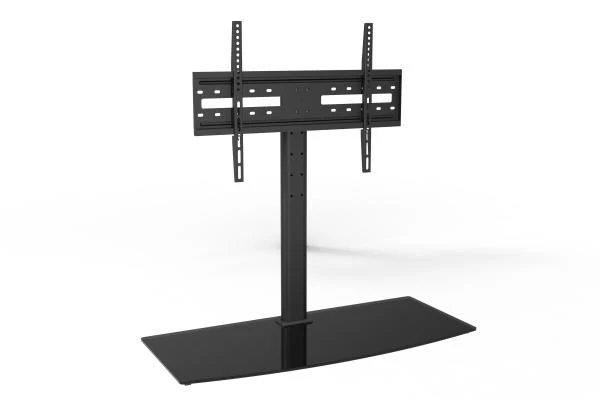
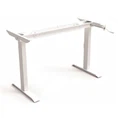
Read all instructions carefully before starting installation to avoid personal injury or property damage. Improper installation may cause the TV to tip over, leading to serious damage or injury
Do not exceed the maximum weight capacity of the stand (check the product label for details; typical capacity is 45kg for 32"-65" TVs).
Ensure the installation surface is flat, stable, and can support the combined weight of the TV and the stand.
Always place a soft, fluffy cloth on the installation surface before laying the TV face down to prevent screen scratches.
Do not apply excessive force when fastening screws, as this may damage the screw drive or strip the threads.
Two or more people are recommended to lift the TV during installation, especially for larger models, to avoid dropping or damaging the TV.
Keep small parts (such as screws and washers) away from children to prevent choking hazards.
Pre-Installation Check
Check VESA Compatibility: VESA (Video Electronics Standards Association) pattern refers to the distance between the mounting holes on the back of your TV. Ensure the TV's VESA pattern (e.g., 200x200mm, 400x400mm) matches the stand's compatible VESA range (check the product label or manual for details). If not compatible, do not use this stand.
Clean the Installation Surface: Wipe the desktop or tabletop clean to remove dust and debris, which can affect the stability of the stand.
Prepare the Work Area: Choose a flat, spacious area to assemble the stand. Lay the soft cloth on the surface to protect the TV screen when placing it face down.
Step-by-Step Installation Guide
Step 1: Assemble the Stand Base
Take the main stand base and attach the anti-slip pads to the bottom of the base. This prevents the stand from sliding on the desktop and protects the surface from scratches.
If the stand has separate support bars or legs, align them with the pre-drilled holes on the base. Insert the provided screws and tighten them firmly using the included Allen wrench. Do not overtighten to avoid damaging the base.
Step 2: Attach Mounting Brackets to the TV
Carefully place the TV face down on the soft cloth, ensuring the screen is fully protected and not in contact with any hard surfaces.
Locate the mounting holes on the back of the TV. Select the appropriate screws from the package that fit the TV's mounting holes (refer to the TV's manual if unsure).
Align the two mounting brackets with the TV's mounting holes. Insert the screws through the brackets and into the TV, then tighten them securely by hand first, then with the Allen wrench. Ensure the brackets are straight and firmly attached-loose brackets may cause the TV to wobble or fall.
If the TV's mounting holes are recessed, use the included spacers (if provided) between the bracket and the TV to ensure a secure fit.
Step 3: Mount the TV to the Stand Base
With the help of another person, carefully lift the TV (with the brackets attached) and align the brackets with the corresponding slots or holes on the top of the stand base.
Once aligned, insert the locking screws (if included) through the brackets and into the stand base to secure the TV in place. Tighten the screws firmly to prevent the TV from moving.
Use a level to check if the TV is horizontal. Adjust the position of the stand or the brackets slightly if needed to ensure the TV is not tilted.
Step 4: Final Checks
Gently shake the TV to test stability. If the TV wobbles, check if all screws are fully tightened and the stand is placed on a flat surface.
Organize the TV cables using cable ties (not included) to keep them neat and prevent tripping hazards. Route the cables behind the stand or along its legs for a clean look.
Ensure the TV is placed in a safe location, away from the edge of the desktop, to reduce the risk of tipping over. Never allow children to climb, stand, or play on the TV or stand.
Troubleshooting
TV wobbles after installation: Check if all screws are fully tightened. Ensure the stand is placed on a flat surface and the anti-slip pads are properly attached. If the issue persists, verify that the TV's weight does not exceed the stand's capacity.
Screws do not fit the TV: Use the correct screw size from the package. If no suitable screws are included, contact customer support for the appropriate screws (do not use mismatched screws, as they may damage the TV).
Stand is unstable on the desktop: Check if the installation surface is flat and stable. Adjust the anti-slip pads or move the stand to a more stable location.
Maintenance & Care
Regularly check all screws to ensure they remain tight. Loose screws can lead to instability and potential safety hazards.
Clean the stand with a soft, dry cloth. Avoid using harsh chemicals or abrasive cleaners, as they may damage the stand's surface.
Do not place heavy objects on the stand or TV, as this may exceed the weight capacity and cause damage.
Contact Information
If you have any questions, concerns, or need replacement parts, please contact our customer support team at [Email Address] or [Phone Number]. We recommend consulting the product manual or our website for model-specific instructions if needed.